Before the application can be run, you will need to make a few changes to the
application/bootstrap.php file. This file is the first one to be included by
index.php and sets up most of the global options for the application.
Open application/bootstrap.php and make the following changes:
Set the default timezone for your application.
// Example of changing timezone to Sao Paulo, Brazil
date_default_timezone_set('America/Sao_Paulo');
Set the base_url in the KO7::init call to reflect the location of the Konine folder
on your server relative to the document root.
/**
 * Example of Konine's installation at /var/www/konine and
 * Apache's DocumentRoot configured to /var/www/konine/public
 */
 Kohana::init(array(
     'base_url' => '/',
 ));
List your trusted hosts. Open application/config/url.php and add regex
patterns of the hosts you expect your application to be accessible from.
Hint:
Do not forget to escape your dots (.) as these are regex patterns. These patterns
should always fully match, as they are prepended with ^ and appended with $.
return array(
    'trusted_hosts' => array(
        'example\.org',
        '.*\.example\.org',
    ),
);
Define a salt for the Cookie class.
Cookie::$salt = 'some-really-long-cookie-salt-here';
Make sure the application/cache and application/logs directories are writable by the web server.
sudo chmod -R a+rwx application/cache
sudo chmod -R a+rwx application/logs
Make sure to use a unique salt for your application and never to share it. Take a look at the
Cookies page for more information on how cookies work in Kohana. If you do not define a
Cookie::$salt value, Kohana will throw an exception when it encounters any cookie on your
domain.
Test your installation by opening http://localhost/
You should see the installation page. If it reports any errors, you will need to
correct them before continuing.
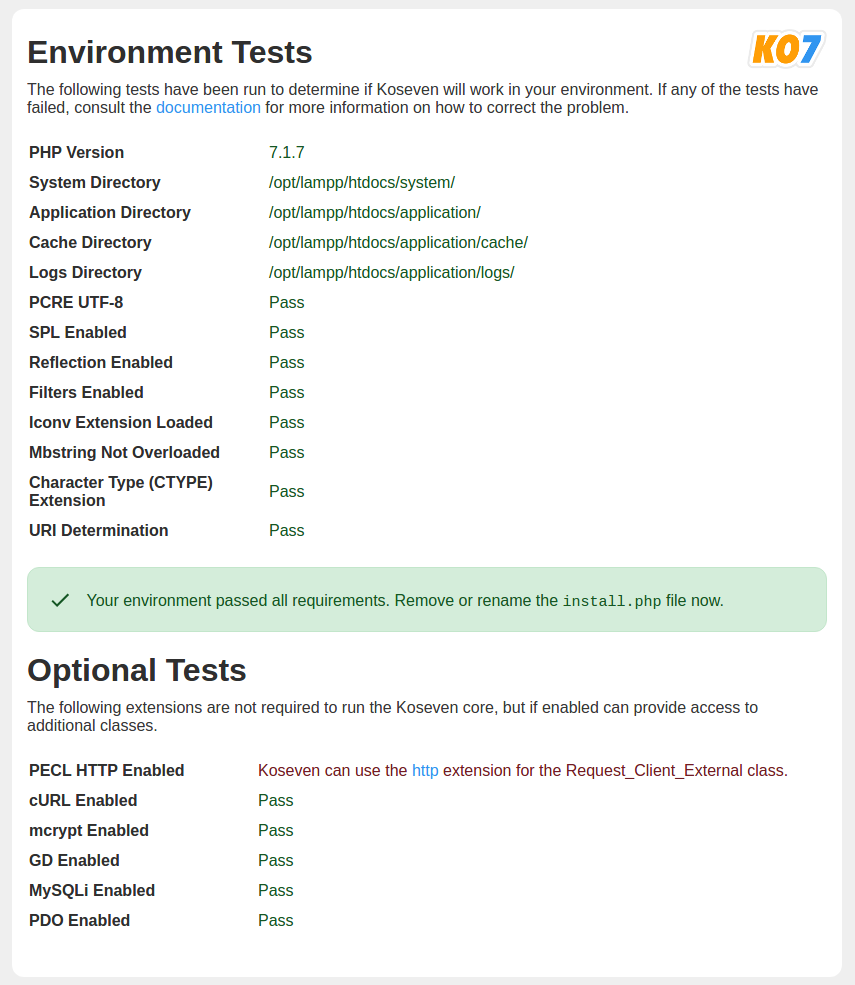
Once your install page reports that your environment is set up correctly you need to either rename
or delete install.php. Kohana is now installed and you should see the output of the welcome
controller:

